
Application Passwords
BlogBook connects to your WordPress site using the REST API and requires an application password instead of your normal WordPress login. Follow these steps to create one.
← Back to BlogBook Documentation
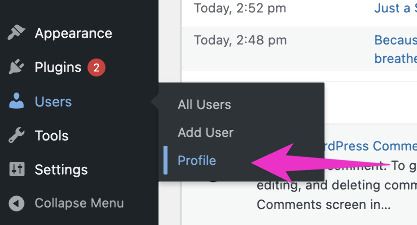
1. Open the Users → Profile page
In your WordPress admin, go to Users in the sidebar, then click Profile.
2. Scroll to the Application Passwords section
Scroll to the bottom of your Profile page until you see the Application Passwords section. It explains that application passwords allow authentication via the REST API without using your main password.
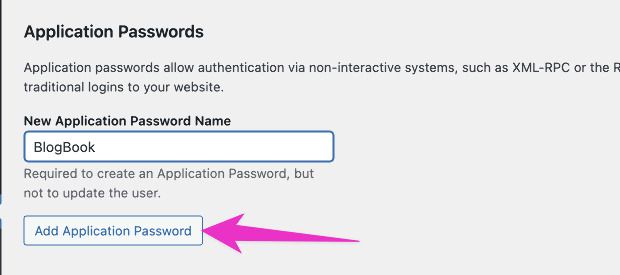
3. Name the password and add it
In the New Application Password Name field, enter a name (e.g. “BlogBook”), then click Add Application Password.
4. Copy the generated password
WordPress shows the new password once. Click Copy and paste it into BlogBook’s Application password field. Once you dismiss the message or leave the page, you won’t be able to see the password again—you’d need to generate a new one.

Tip: Store the password in a password manager (e.g. 1Password) or secure notes so you can reuse it. You can also generate a new application password anytime from your Profile page.
Using the password in BlogBook
After you enter a blog URL, username, and application password in BlogBook and connect successfully, those credentials are saved. You can load them again later using the dropdown next to the Blog URL field, so you don’t need to re-enter the password unless you revoke it or generate a new one in WordPress.
More information
For WordPress.com and self-hosted details, see Application-specific passwords on WordPress support.