
Ghost Content API Keys
BlogBook connects to Ghost using a Content API key from a Custom Integration. These keys are read-only and safe to share with export tools. Follow the steps below to create one.
← Back to BlogBook Documentation
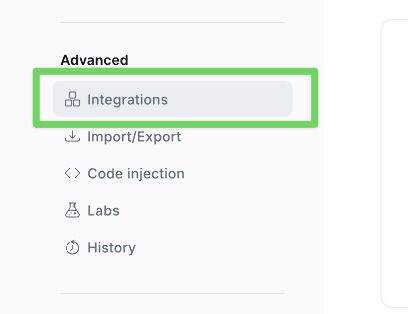
1. Open Settings → Integrations
Sign in to Ghost Admin, then open Settings in the sidebar and choose Integrations.
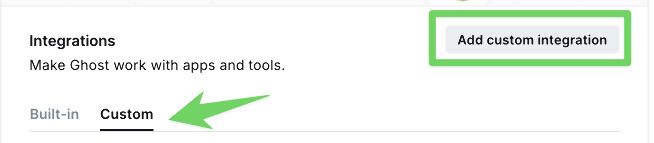
2. Add a custom integration
Click Add custom integration, give it a descriptive name such as “BlogBook”, and save it. Ghost will generate Admin and Content API keys for the integration.
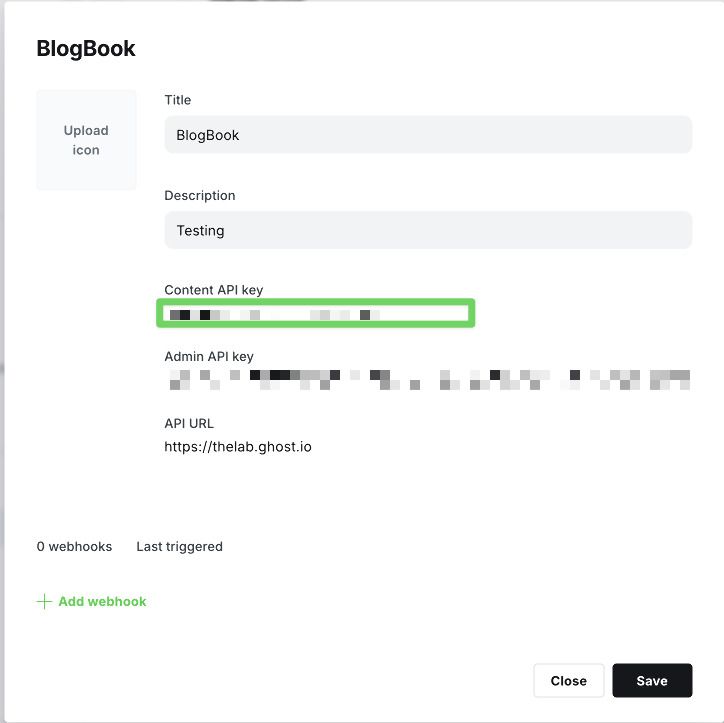
3. Copy the Content API key
After the integration is created, locate the Content API key. Click Copy and store it securely. The Content key provides read-only access to published posts and is the value BlogBook needs.
Using the key in BlogBook
In BlogBook’s Credentials screen, enter your Ghost site URL (e.g. https://example.com), let BlogBook detect the platform (or choose Ghost manually), and paste the Content API key into the Content API Key field. Tap Connect to verify access. Once verified, BlogBook remembers the credentials so you can select the site from the saved blogs menu later.