
Micro.blog App Tokens
BlogBook authenticates with Micro.blog using an app token instead of your regular password. Follow these steps to create and use a token.
← Back to BlogBook Documentation
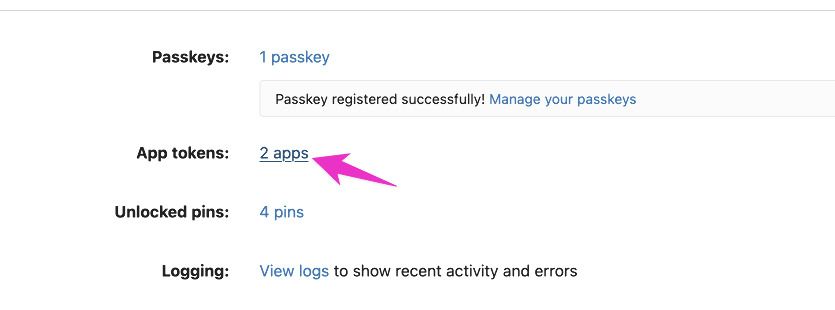
1. Open Account → App tokens
In Micro.blog on the web, click your avatar in the upper-right corner and choose Account. On the Account page, open the App tokens section.
2. Create a new token
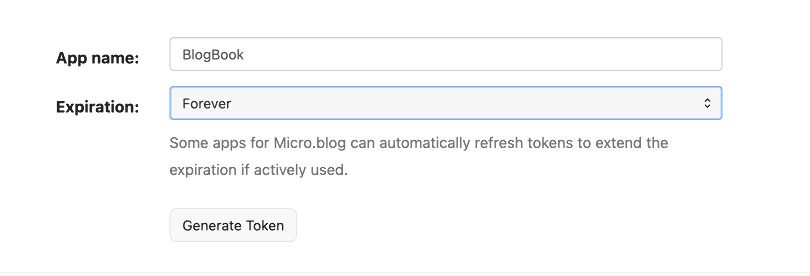
Enter a descriptive name such as “BlogBook” and click Create Token. Each token is scoped to your account and can be revoked at any time.
3. Copy the token
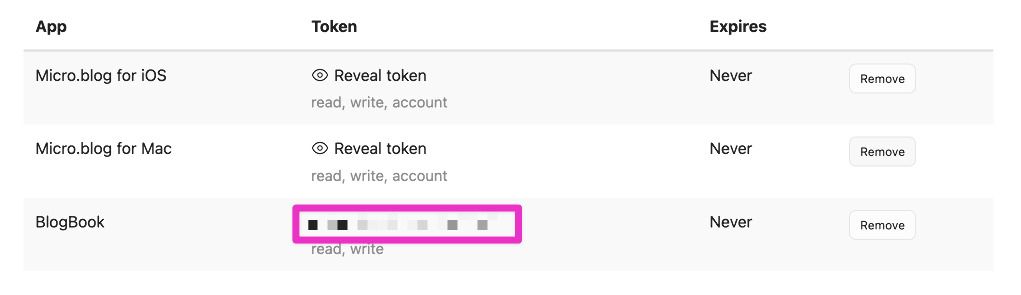
Micro.blog shows the token once immediately after it is generated. Click Copy and store it in a password manager so you can paste it into BlogBook later. If you lose the token, delete it and generate a new one.
Using the token in BlogBook
Back in BlogBook’s Credentials screen, enter your Micro.blog URL (e.g. https://username.micro.blog), choose Micro.blog as the platform if it was not detected automatically, and paste the token into the App Token field. Tap Connect to verify the credentials. BlogBook stores validated tokens securely so you can reuse them from the saved blogs dropdown.